How to Choose WordPress Hosting for a Business Website
Shared, managed, VPS or cloud? What actually matters when choosing WordPress hosting for a business site — speed, location, backups, support, limits and the questions to ask before you buy.
 pasindukw
· 7 min read
Hosting is the foundation your website stands on, and it is easy to choose badly. The cheapest plan looks like a bargain until pages crawl, the site goes down during a promotion or a plugin update needs more memory than the plan allows. The most expensive plan is often more than a small business needs. The right choice sits somewhere in between, and it depends on what your site does. This guide explains how to choose WordPress hosting that fits your site.
In this guide
We build WordPress sites that run on everything from inexpensive shared plans to managed platforms and cloud servers, and we design around each host’s limits. This guide explains the types of hosting, what actually matters and the questions to ask before you buy.
What hosting actually does
A host provides a server that stores your website’s files and database, runs PHP to build pages, and sends those pages to visitors. Everything else — speed, uptime, security, backups, email — depends on how that server is set up, how many other sites share it and what the host includes around it.
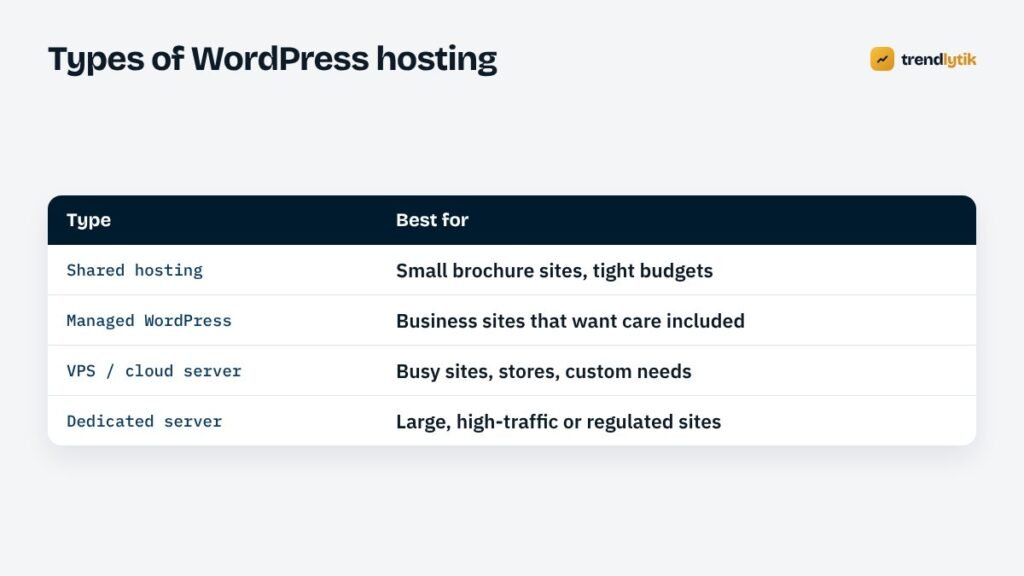
The four types of WordPress hosting
Shared hosting
Your site shares a server with many others. It is the least expensive option and the easiest to start with. Good shared hosting is perfectly adequate for a small brochure site. The trade-offs: limited resources, stricter limits on PHP execution time and memory, and performance that can be affected by neighbouring sites. Some shared plans also restrict outbound connections — something we work around when building AI features, as described in calling the Claude API on restricted hosting.
Managed WordPress hosting
Hosting built specifically for WordPress, typically with server-level caching, automatic backups, staging sites, security monitoring and support staff who understand WordPress. It costs more than basic shared hosting but removes a lot of technical work. A good fit for most business sites that want reliability without managing a server.
VPS and cloud servers
A virtual private server or cloud instance gives you dedicated resources and full control. Excellent for busy sites, stores and custom applications — but someone has to configure, secure and maintain the server. Many businesses use a server management panel or a developer to handle this.
Dedicated servers
An entire physical server for your site. Rarely needed for small and medium businesses; appropriate for very high-traffic sites or specific compliance requirements.
What actually matters
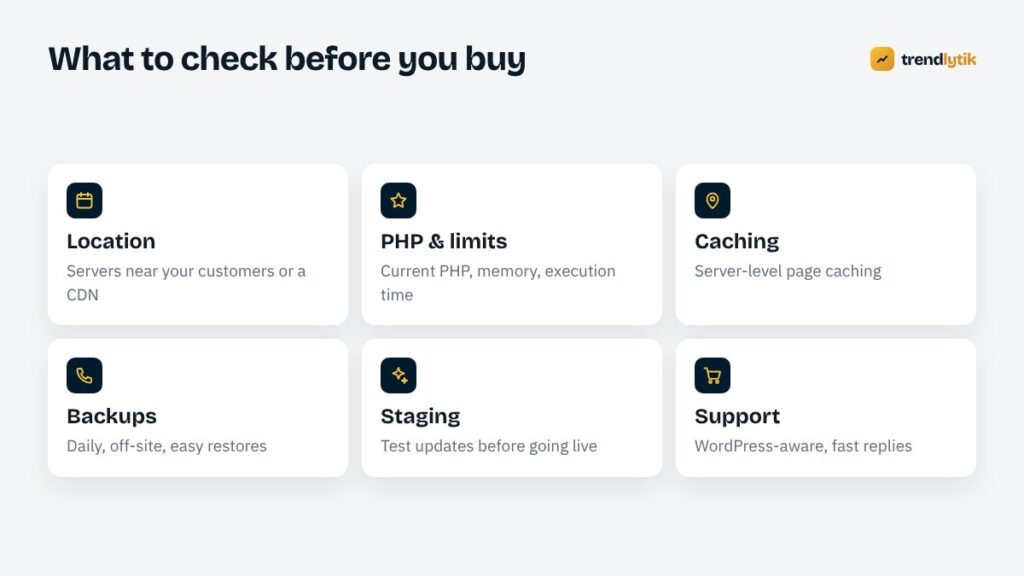
Server location and CDN
Physical distance adds delay. If most of your customers are in Australia, a server in Europe makes every request travel further. Choose a data centre near your main audience, or put a content delivery network (CDN) in front of the site so static files — and sometimes whole pages — are served from locations close to each visitor. For businesses serving several countries, a CDN is usually the practical answer.
PHP version and limits
WordPress runs on PHP. Newer supported PHP versions are faster and receive security fixes; check that the host offers current versions and lets you switch easily. Also check the resource limits: memory per PHP process, maximum execution time, the number of PHP workers and any limits on CPU or simultaneous connections. These decide whether imports, backups, stores and AI tools run smoothly — see batch processing under a 60-second limit.
Caching
Server-level page caching serves ready-made pages instead of rebuilding each one from the database. It is one of the biggest speed improvements available and works best when built into the server rather than bolted on with several plugins. Ask how the host handles caching and how it treats logged-in users, carts and checkouts.
Backups
Daily automatic backups, kept for a reasonable period and stored separately from your site, with a simple restore button. Still keep your own off-site copy — the 3-2-1 rule in our maintenance checklist explains why.
Staging
A one-click staging copy lets you test updates and changes before they reach visitors. For stores and busy sites, it is close to essential.
Security
Look for free SSL certificates, a web application firewall, malware scanning, isolation between accounts on shared servers and prompt server software updates. Security at the server level complements, rather than replaces, keeping WordPress itself updated.
Support
When something breaks, the quality of support matters more than any feature list. Look for support that understands WordPress, responds quickly and can look at server logs. Read recent reviews about support specifically.
Website emails — form notifications, order confirmations — are often unreliable when sent directly from web servers. Many hosts include email, but for important messages it is better to use a dedicated transactional email service with your domain properly authenticated.
Matching hosting to the type of site
A small brochure site
A few pages, a contact form and modest traffic. Good shared hosting or an entry-level managed plan is enough. Prioritise reliable backups, free SSL and a server near your customers. This is where our Starter Website usually lives.
A growing business site with a blog
More pages, regular publishing and traffic from search. Managed WordPress hosting earns its keep here: server caching, staging for safe updates and support that understands WordPress.
An online store
Carts, checkouts and accounts cannot be fully page-cached, so stores need more server resources than brochure sites. Choose a plan with enough PHP workers and memory, caching that correctly excludes cart and checkout pages, and frequent database backups — every order lives in the database.
A content site with tools or AI features
Interactive calculators, imports and AI generation need generous execution limits and permission to make outbound API calls. If those are restricted, the features can still work with careful engineering, but it is better to know the limits before you build.
Performance testing a new host
Before moving an important site, test the new host with a copy. Measure the time to first byte for a few key pages, run PageSpeed Insights, try the admin area while editing a large page and run a backup. Ten minutes of testing tells you more than any feature comparison table.
Signs you have outgrown your hosting
- Pages load slowly even after optimising images and plugins.
- The site slows down or errors during busy periods.
- Imports, backups or updates time out.
- Your host warns about resource usage or suspends the account.
- You need features the plan does not allow, such as staging or specific PHP settings.
Questions to ask a host before you buy
- Where are your data centres, and can I choose one?
- Which PHP versions do you support, and how do I switch?
- What are the memory, execution time and worker limits on this plan?
- Is page caching built in? How does it handle WooCommerce carts and checkouts?
- How often are backups taken, how long are they kept and how do I restore one?
- Is staging included?
- Do you allow outbound connections to external APIs?
- What happens if my site gets a traffic spike?
- How do I reach support, and how quickly do you respond?
- Will the renewal price be different from the introductory price?
The renewal price trap
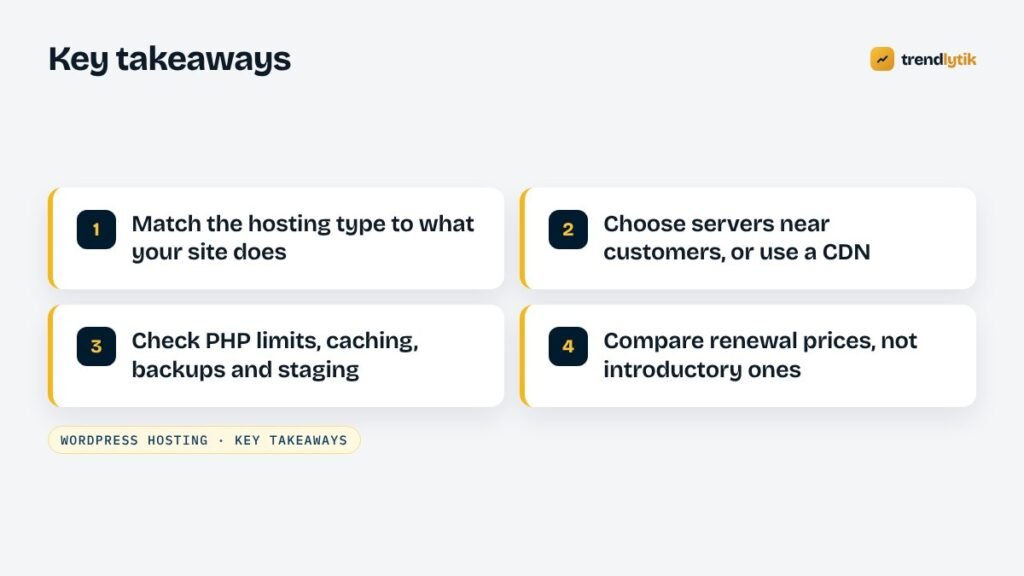
Many hosts offer a low introductory price for the first term and a much higher renewal price afterwards. That is not necessarily bad, but compare hosts on the renewal price, not the headline price, and note the renewal date in your calendar.
Moving to a new host
Moving a WordPress site is routine when done carefully:
- Take a full backup of files and database.
- Copy the site to the new host — many hosts offer free migration.
- Test the copy using a temporary address or by editing your computer’s hosts file.
- Lower the DNS time-to-live a day in advance, then point the domain to the new host.
- Check forms, emails, SSL, redirects and caching on the new server.
- Keep the old hosting active for a week or two in case anything was missed.
Uptime is not the whole story
Hosts advertise uptime percentages, and they matter, but a site can be “up” and still slow, still failing to send emails or still timing out on checkout. Set up an independent uptime monitor that checks your site every few minutes, and look at real speed data in Search Console rather than relying on the host’s claims.
Our approach
We do not resell hosting. We recommend hosting based on the site — a small starter site, a busy content site and a WooCommerce store have different needs — and we engineer themes and plugins to respect the limits of whatever plan our clients choose. If your site is slow or unreliable and you are not sure whether hosting is the cause, our speed and technical SEO service will find out. Ask us for a recommendation for your site.
Sources and further reading
- WordPress requirements — the recommended server setup for WordPress.
- PHP supported versions — which PHP versions still receive security fixes.
Questions about this topic.
Is shared hosting good enough for a business website?
For a small brochure site with modest traffic, good shared hosting can be perfectly adequate. Stores, busy sites and sites with heavy features usually benefit from managed WordPress or a VPS.
Does server location affect SEO?
Not directly as a ranking signal, but it affects speed. A server close to your visitors, or a CDN in front of it, makes pages load faster, which improves the experience and Core Web Vitals.
How do I move my site to a new host?
Copy the files and database to the new host, test it with a temporary address, then switch the DNS. Many hosts offer free migration; either way, take a full backup first and keep the old hosting active until the move is confirmed.