WordPress Maintenance Checklist: What to Do Weekly, Monthly and Yearly
A WordPress site is not finished at launch. This practical maintenance schedule covers updates, backups, security, speed, SEO checks and the yearly renewals that catch businesses out.
 pasindukw
· 7 min read
In this article
Launching a WordPress website is like buying a car. It runs beautifully on day one, and with regular servicing it keeps running for years. Ignore it, and one day it stops at the worst possible moment — a hacked home page during a sales campaign, an expired domain on a Monday morning, a contact form that silently stopped sending emails three months ago.
The good news is that WordPress maintenance is not complicated. It is a short list of tasks done on a regular schedule. Here is the schedule we follow for the sites we look after, which you can use yourself or hand to your developer.
Why maintenance matters
WordPress powers a very large share of the web, which makes it a constant target for automated attacks. Most successful attacks do not exploit WordPress core; they exploit outdated plugins and themes, weak passwords or abandoned admin accounts. Maintenance closes those doors.
Maintenance also protects things that quietly decay: speed, as plugins and content accumulate; search visibility, as links break and pages go stale; and simple functionality, as third-party services change their rules.
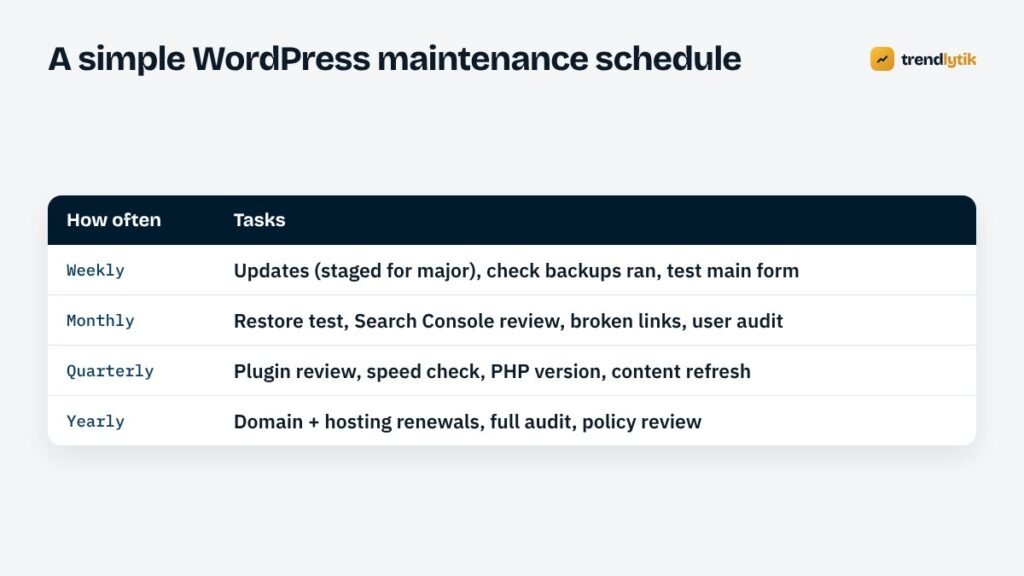
Weekly tasks
Apply updates — carefully
Update WordPress core, plugins and themes. Minor and security releases are usually safe to apply promptly. For major releases of critical plugins — page builders, ecommerce, membership or booking systems — update on a staging copy first and test the important pages and checkouts before updating the live site.
Read the changelog for anything marked as a security fix and prioritise it.
Confirm backups ran
Do not assume. Check that the last backup completed and that it contains both the files and the database.
Test the most important form
Submit your contact or quote form and confirm the email arrives. Email delivery problems are common and silent; you only notice when you realise enquiries have dried up.
Glance at uptime alerts
An uptime monitor checks your site every few minutes and alerts you if it goes down. Review any downtime and ask your host about recurring problems.
Monthly tasks
Test a restore
A backup you have never restored is a hope, not a plan. Once a month — or at least once a quarter — restore a backup to a staging site and check that it works.
Review Search Console
Check the Pages report for new indexing problems, the Core Web Vitals report for slow templates and the Performance report for drops in clicks on important pages. Fix 404 errors on URLs that matter with redirects.
Check for broken links
Links to other websites break as those sites change. Internal links break when pages are renamed. A monthly crawl catches both.
Audit user accounts
Remove accounts for staff, freelancers and agencies who no longer need access. Make sure every administrator uses a strong, unique password and two-factor authentication. Give people the lowest role that lets them do their job — editors rarely need to be administrators.
Review comments and form spam
Clear spam and check that anti-spam measures are working without blocking real enquiries.
Quarterly tasks
Review every plugin
For each plugin, ask: do we still use it, is it still maintained, and is there a lighter alternative? Delete — do not just deactivate — anything unused. Abandoned plugins are a common entry point for attackers. Fewer plugins mean fewer updates, fewer conflicts and a faster site.
Check speed
Run your home page and key templates through PageSpeed Insights and compare with last quarter. If Core Web Vitals are slipping, find out which plugin, script or image is responsible.
Check the PHP version
PHP is the language WordPress runs on. Older versions stop receiving security fixes and are slower. Check which versions are currently supported on php.net, confirm your plugins are compatible on a staging site and ask your host to upgrade.
Refresh important content
Update prices, team members, opening hours, service descriptions and dated articles. Fresh, accurate content helps visitors and search engines alike.
Clean the database
Remove old post revisions, expired transients, spam comments and leftover tables from deleted plugins. Always back up first.
Yearly tasks
Renew the domain and hosting
Expired domains are one of the most avoidable disasters on the web. Turn on auto-renew, make sure the payment card on file is current and check that renewal emails go to an address someone reads. Do the same for hosting, email services, premium plugin licences and SSL certificates if they are not renewed automatically.
Run a full audit
Once a year, look at the whole site with fresh eyes: design, messaging, structure, speed, accessibility and SEO. Is it still doing its job? Small yearly improvements avoid the need for an expensive full redesign every few years — and if a redesign is due, our guide to redesigning without losing rankings will help.
Review legal pages
Privacy policies and cookie notices need to match the tools you actually use — analytics, advertising, embedded videos, email marketing. Review them whenever you add a new service, and at least once a year.
Check who has access to everything
Domain registrar, hosting, DNS, Google accounts, analytics and email providers: make a list, confirm the business owns each account and remove people who no longer need access.
Backups: the 3-2-1 rule
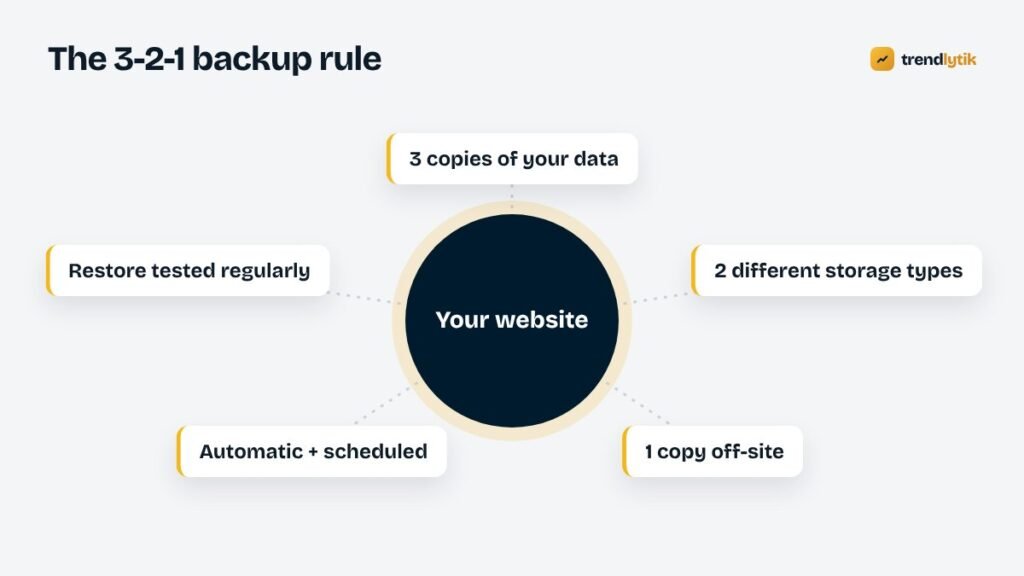
A reliable backup strategy follows the 3-2-1 rule: keep three copies of your data, on two different types of storage, with one copy off-site. For a WordPress site in practice:
- Your live site is one copy.
- Your host’s automatic backups are a second.
- A scheduled backup to separate cloud storage you control — not on the same server or account — is the third.
Match the frequency to how often the site changes. A brochure site might back up daily; a busy store should back up the database far more often, because every order lives there.
Security basics that prevent most problems
- Strong, unique passwords and two-factor authentication for every admin.
- Prompt updates, especially security releases.
- No unused plugins or themes left installed.
- Reputable hosting with server-level protection and isolation between sites.
- HTTPS everywhere.
- Limited admin accounts, and no shared logins.
- Custom code that validates input and escapes output — something we build into every theme and plugin we write.
When something goes wrong
Even well-maintained sites have bad days. If an update breaks something, restore the most recent backup or roll back the plugin, then investigate on staging. If you suspect a hack — strange redirects, unknown admin users, spam pages in search results — change all passwords, restore from a clean backup, update everything and ask your host for help. Then find out how the attacker got in, so it does not happen again.
Signs a site has been neglected
When we take over an existing site, these clues tell us maintenance has slipped — and they are worth checking on your own site today:
- The WordPress dashboard shows a long list of pending updates.
- Plugins that have not been updated by their authors in years.
- Several inactive plugins and themes left installed “just in case”.
- Administrator accounts for people nobody remembers.
- A footer copyright year that is several years out of date.
- No recent backups, or backups stored only on the same server.
- The contact form sends to an old email address.
- Search Console has not been opened in months, or was never set up.
None of these means disaster on its own, but together they make one far more likely.
What a good maintenance report includes
If someone looks after your site for you, ask for a short monthly report. It should list the updates applied, the backups taken and the last successful restore test, any uptime incidents, security events or blocked attacks worth knowing about, speed and Search Console highlights, and anything that needs your decision — a plugin to replace, a renewal coming up, content that has gone out of date. A report you can read in two minutes is worth far more than a promise that “everything is fine”.
Do it yourself or hand it over?
Everything on this list can be done by a careful site owner with a few hours a month. Many businesses prefer to hand it to a developer so it happens reliably and someone who knows the code is on hand when something breaks. Either way, the important thing is that it happens.
Trendlytik maintains the sites we build and many we did not. If you would like someone to take care of your WordPress site, get in touch — or read the questions to ask any developer before you hand over the keys.
Questions about this topic.
Can I turn on automatic updates for everything?
Automatic minor and security updates for WordPress core are sensible. For plugins, automatic updates are convenient but carry some risk on complex sites, especially stores. A common approach is automatic updates for simple, well-maintained plugins and staged updates for critical ones.
Are my host's backups enough?
They are a good start, but they are usually stored with the same company, sometimes on the same infrastructure. Keep at least one copy somewhere else that you control.
How much time does maintenance take?
For a typical business site, a few focused hours a month covers everything here. Stores and busy content sites need more, mainly for testing updates.