Stop Asking Clients to Clear Their Cache: filemtime() Cache Busting
Hard-coded version numbers mean stale CSS after every deploy. One line of PHP fixes it permanently — plus the caching layers, CDN rules and gotchas that still trip people up.
 pasindukw
· 8 min read
You deploy a fix, the client reloads the page and nothing has changed. The button is still the wrong colour; the menu still breaks on mobile. Their browser — or a CDN, or a caching plugin — is still serving yesterday’s stylesheet because the URL did not change. The usual workaround is to bump a version number by hand, which everyone forgets on busy days. So the support email goes out: “please clear your cache”. Cache busting fixes that for good.
In this guide
There is a better way, and it takes one line of PHP. This article explains the technique we use in every theme and plugin, why it works, and the caching layers that can still get in the way.
Why browsers keep old files
Caching is a good thing. When a visitor’s browser downloads your stylesheet, the server tells it how long it may keep the file. Next time, the browser uses its copy instead of downloading it again, which makes pages load much faster. Good hosting sets long cache lifetimes for CSS, JavaScript, fonts and images precisely for this reason.
The catch is that the browser identifies the file by its URL. If you change the contents of style.css but the URL stays the same, the browser has no reason to fetch it again until its cached copy expires — which could be days or months away.
The solution is to change the URL whenever the file changes. WordPress makes that easy with the version argument of wp_enqueue_style() and wp_enqueue_script(), which is added to the URL as ?ver=….
The one-line cache busting fix
Instead of a hard-coded version number, use the file’s last-modified time:
function tk_assets() {
    $css = '/assets/css/main.css';
    $js  = '/assets/js/main.js';

    wp_enqueue_style(
        'tk-main',
        get_template_directory_uri() . $css,
        array(),
        filemtime( get_template_directory() . $css )
    );

    wp_enqueue_script(
        'tk-main',
        get_template_directory_uri() . $js,
        array(),
        filemtime( get_template_directory() . $js ),
        array( 'strategy' => 'defer', 'in_footer' => true )
    );
}
add_action( 'wp_enqueue_scripts', 'tk_assets' );
WordPress now outputs URLs like main.css?ver=1761650000. Change the file and the number changes, so browsers and CDNs fetch the new version automatically. Leave it untouched and the URL stays identical, so caching keeps working at full strength.
Why not just bump a version number?
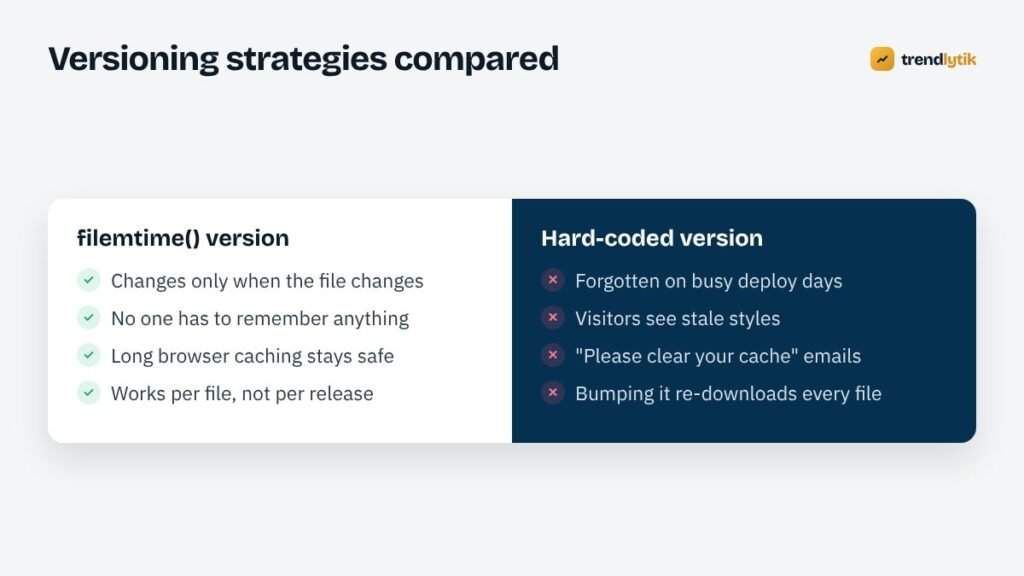
A hard-coded version — '1.4.2' in the enqueue call — works only if someone remembers to change it every time. It also changes for every file at once, forcing visitors to re-download unchanged scripts. filemtime() versions each file independently and never forgets.
Some teams use the theme version from style.css instead. That is better than nothing for formal releases, but quick fixes between releases still go unnoticed.
Gotchas that still catch people
Pass the path, not the URL
filemtime() needs a file system path, so use get_template_directory() (or get_stylesheet_directory() in a child theme) for the version and get_template_directory_uri() for the URL. Mixing them up produces a warning and no version.
Child themes
In a child theme, files live in the stylesheet directory. Use get_stylesheet_directory() and get_stylesheet_directory_uri() for child theme assets, and the template functions for parent theme assets.
Plugins
The same approach works in plugins with plugin_dir_path( __FILE__ ) for the version and plugins_url() for the URL.
Deployments that reset timestamps
Some deployment methods set every file’s modification time to the moment of deployment. That still works — versions change on every deploy — but it means all assets are re-downloaded each time. If that matters, use a hash of the file contents instead, generated at deploy time.
Missing files
If a file is missing, filemtime() returns false and raises a warning. Wrap it in a small helper that checks file_exists() first, or make sure your deployment checks catch missing assets.
A small helper keeps templates clean and avoids warnings when a file is missing:
function tk_asset_version( $relative ) {
    $path = get_template_directory() . $relative;
    return file_exists( $path ) ? filemtime( $path ) : null;
}
Returning null tells WordPress to omit the version rather than print a misleading one, and the missing file is easy to spot during testing because the stylesheet will not load at all.
The other caching layers
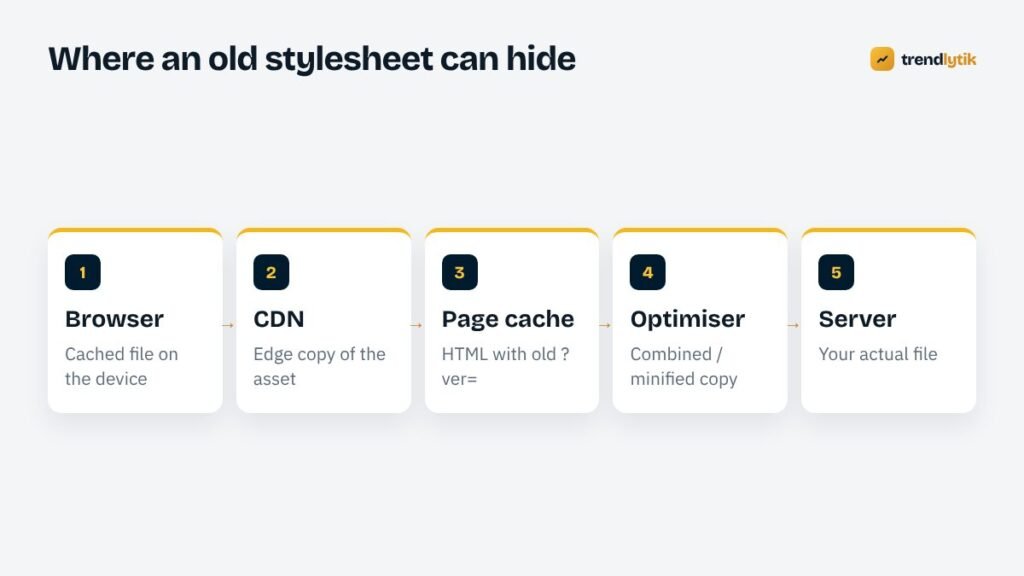
Cache busting solves the asset URL problem. But a stylesheet passes through several layers between your server and a visitor, and some of them can still serve old content:
- Page caches store the HTML of each page — including the
?ver=value from when it was cached. Until the page cache is purged, visitors receive HTML pointing at the old version. Purge it after every deploy that changes assets. - Optimisation plugins that combine and minify files create their own cached copies with their own names. Clear their cache after deploying, or exclude the files you version yourself.
- CDNs respect query strings in most configurations, but some are set to ignore them. Check your CDN’s cache key settings, or purge it after deploys.
- Query-string removal. Some speed plugins offer to “remove query strings from static resources”. With that turned on, cache busting cannot work. Turn it off; modern CDNs and browsers cache URLs with query strings perfectly well.
A simple habit helps too: after any deploy that touches CSS or JavaScript, open the site on your phone over mobile data. It uses different caches from your office computer and shows what most visitors will actually see.
Long cache lifetimes become safe
Once every asset URL changes when its content changes, you can tell browsers to cache CSS, JavaScript and fonts for a long time — a year is common — without worrying about stale files. That is one of the easiest speed wins available, and it improves repeat visits and Core Web Vitals for returning visitors.
A note on inline styles
Sometimes a theme prints a small block of CSS directly into the page — for example, @font-face rules that need the theme’s URL, or colours chosen in the Customizer. Inline styles are part of the HTML, so they are never cached separately: they change as soon as the page cache is purged. Keep them small, and put everything else in versioned files.
Troubleshooting stale files step by step
When someone reports that a change has not appeared, work from the visitor back to the server:
- Open the page in a private window. If the change appears, the visitor’s browser cache was the problem — and with versioned URLs, it will not happen again once the page cache is fresh.
- View the page source and find your stylesheet link. Does the
?ver=value match the file’s latest modification time? If not, the HTML itself is cached. - Open the stylesheet URL directly with the new version number. If the old content appears, a CDN or optimiser is serving a stale copy.
- Check the file on the server. Occasionally the upload did not complete, or the change went to a different environment.
Each step eliminates one layer, and the problem is almost always found by step three.
Beyond themes: images and uploads
The same principle applies to other files that change. If you replace an image but keep its file name, browsers may keep showing the old one. WordPress normally avoids this by giving uploads unique names, but manual uploads over FTP or replacement plugins can reuse names. When in doubt, give a replaced file a new name — or add a version query string to its URL.
Service workers and app-like sites
A few sites install a service worker — a script that can cache files for offline use. Service workers have their own cache, separate from the browser’s normal cache, and they keep serving it until the service worker itself updates. If your site uses one, version its cache name on every release and make sure old caches are deleted when the new worker activates. Most business sites do not need a service worker at all; if one was added by a plugin you no longer use, removing it properly can fix mysterious stale-content problems.
Why this matters for clients
Stale files are more than an inconvenience. A client approving a design change sees the old version and assumes the work was not done. A bug fix appears not to work, so the bug gets reported again. A visitor sees half-old, half-new styles and the page looks broken. Reliable cache busting removes a whole category of confusing conversations and makes every deployment feel instant — which is exactly how it should feel.

A deploy checklist
- Upload changed files to the existing theme folder — never a renamed copy (see why Customizer settings vanish).
- Purge the page cache.
- Clear the optimisation plugin’s cache if you use one.
- Purge the CDN if it ignores query strings.
- Load the site in a private window and check the new
?ver=values in the page source.
With filemtime() versioning in place, that is all — no more “clear your cache” emails. It is part of the hosting-aware engineering we build into every custom theme. If your site still shows old styles after updates, send us the URL and we will find which layer is holding on.
Sources and further reading
- wp_enqueue_style() — WordPress reference, including the version argument.
- PHP filemtime() — how the file modification time is read.
Questions about this topic.
Does filemtime() slow WordPress down?
The cost is a file system check per enqueued asset, which is negligible for a theme's handful of files. PHP also caches file status information within a request.
My CSS changes still do not show — why?
Usually a page cache is still serving HTML that references the old version number, or an optimisation plugin has combined files into its own cached copy. Purge the page cache and the optimiser's cache after deploying.
Should I use filemtime() for plugin assets too?
Yes, the same approach works with plugin_dir_path() and plugins_url() for any CSS or JavaScript file you control.