WooCommerce Launch Checklist: 40 Things to Check Before You Go Live
Products, payments, shipping, tax, emails, legal pages, speed and SEO — a practical WooCommerce pre-launch checklist from a developer who has launched and fixed many stores.
 pasindukw
· 7 min read
Launching an online store is a strange mix of excitement and dread. Months of work come down to one moment: the first real customer, entering real card details, expecting a real parcel. Most launch-week problems are small — a shipping rate that does not show for one region, an email that lands in spam, a coupon that stacks when it should not — but in ecommerce, small problems cost money and trust. A careful WooCommerce launch catches them before your customers do.
In this guide
This checklist is the one we use when we launch WooCommerce stores, from boutique shops to catalogues with thousands of products. Work through it a week before launch, not the night before.
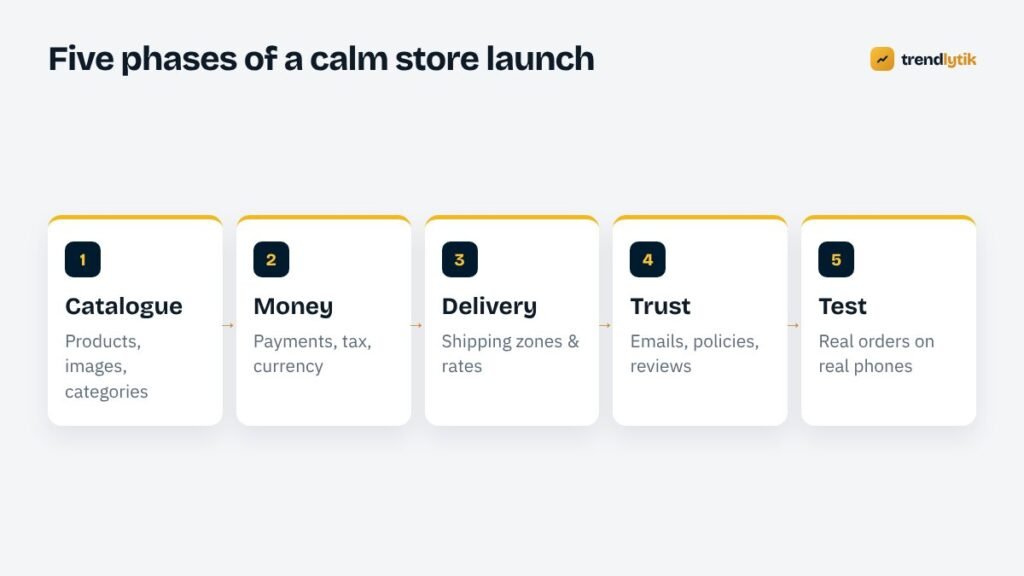
Phase 1: Catalogue (checks 1–8)
- Every product has a clear title, price and description. Descriptions should answer the questions customers ask: size, material, compatibility, care, what is in the box.
- Images are consistent and optimised. Same aspect ratio, similar backgrounds, compressed files and descriptive alt text. Large, inconsistent images make a store look unfinished and slow.
- Variations are set up correctly. Sizes and colours as variations with their own stock, SKU and image where relevant — not as separate products unless there is a good reason.
- SKUs are unique and meaningful. They make stock management, imports and integrations far easier later.
- Stock levels are accurate, and you have decided whether to allow backorders.
- Categories and tags are logical. Think like a shopper: how would someone browse your range? Avoid dozens of near-empty categories.
- Weights and dimensions are filled in if any shipping rates depend on them.
- Related products, upsells and cross-sells are set where they genuinely help.
Phase 2: Money (checks 9–16)
- Store currency and price formatting match your market, including decimal and thousand separators.
- Payment gateways are live, not in test mode. This sounds obvious; it is one of the most common launch-day mistakes.
- The payment methods suit your customers. International stores often rely on card processors such as Stripe and PayPal; many markets also have local gateways and bank transfer preferences. In Sri Lanka, for example, local gateways such as PayHere offer WooCommerce integrations.
- Tax settings are configured for where you sell, including whether prices are entered and displayed with or without tax. Check with your accountant.
- Coupons behave as intended — expiry dates, usage limits, minimum spend and whether they can be combined.
- Order statuses and stock reduction work as expected for each payment method, including bank transfer and cash on delivery if offered.
- Refunds work through the gateway, not just in WooCommerce.
- Payouts are connected to the right bank account in each payment provider.
Phase 3: Delivery (checks 17–22)
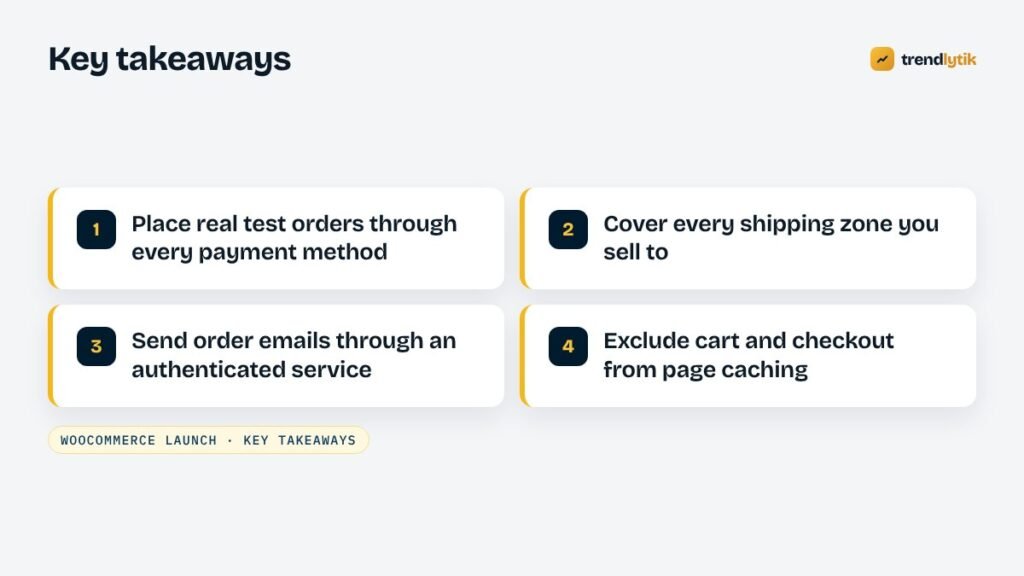
- Shipping zones cover everywhere you sell — and nowhere you do not. A missing zone means customers see “no shipping options available” and leave.
- Rates are correct for each zone and method: flat rate, weight-based, free shipping thresholds, local pickup.
- Free shipping rules work at the threshold and do not combine with coupons in unintended ways.
- Delivery times are stated on product pages, the cart and the shipping policy.
- Local options exist where they matter. For a client selling to Singapore and Colombo, we built dedicated shipping methods for each market rather than forcing everything through generic rates — see the Dquills project.
- Packing slips and labels are ready if you use a shipping integration.
Phase 4: Trust (checks 23–31)
- Transactional emails are branded and readable — order received, processing, completed, refunded, password reset.
- Emails are delivered reliably. Send them through a proper email service with your domain authenticated (SPF, DKIM and DMARC), and check they do not land in spam.
- The store owner receives new-order notifications at an address someone actually reads.
- Policies are published: shipping, returns and refunds, privacy and terms. Link them in the footer and at checkout.
- Contact details are easy to find, with a real email, phone or WhatsApp number.
- The site uses HTTPS everywhere with no mixed-content warnings.
- Product reviews are enabled or disabled deliberately, and moderated.
- Cookie and consent requirements are handled for the regions you sell to.
- Your About page tells a real story. New stores especially need to show who is behind them.
Phase 5: Testing (checks 32–40)
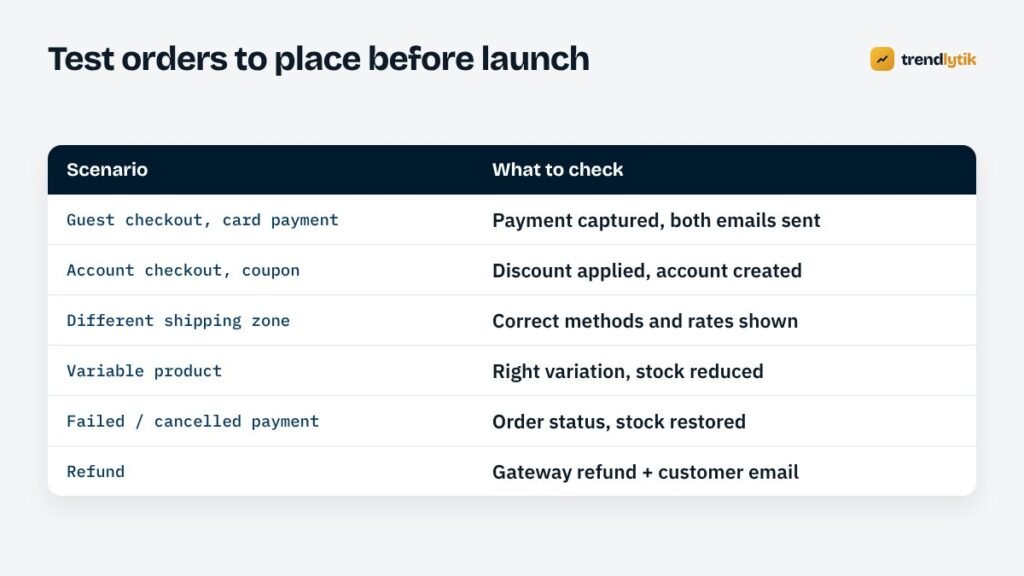
- Place real test orders through every payment method, then refund them. Use the scenarios in the table above.
- Test on real phones, over mobile data, from product page to thank-you page. Most shoppers will buy on a phone.
- Check checkout fields. Remove any you do not need; every extra field costs conversions.
- Allow guest checkout unless you have a strong reason not to.
- Check speed on the home page, a category page and a product page. Look at Core Web Vitals, especially image sizes and scripts loaded on every page.
- Make sure cart, checkout and account pages are excluded from page caching, or customers may see each other’s carts.
- Confirm backups run daily and include the database, with copies stored off the server. Orders arrive constantly; a weekly backup is not enough.
- Set up uptime monitoring so you know within minutes if the store goes down.
- Write down who does what when an order arrives, a payment fails or a customer asks for a refund.
SEO essentials for a new store
Search traffic is the most sustainable source of sales, and the foundations are easiest to set before launch:
- Unique product descriptions. Copying manufacturer text means competing with every other store using the same words.
- Descriptive category pages with a short introduction, not just a grid of products.
- Clean URLs and breadcrumbs that reflect your categories.
- Structured data. WooCommerce outputs basic Product data — price, availability and reviews — and a good theme adds breadcrumbs and organisation details. Test pages in Google’s Rich Results Test.
- An XML sitemap submitted to Google Search Console and Bing Webmaster Tools.
- Out-of-stock products kept rather than deleted if they will return; permanently discontinued products redirected to the closest alternative.
Technical housekeeping
- Use High-Performance Order Storage. New WooCommerce stores use HPOS by default, which stores orders in dedicated tables. Check that every plugin you install is compatible.
- Keep plugins to a minimum. Each extension adds code to checkout, the most important page you have.
- Run a supported PHP version and keep WordPress, WooCommerce and extensions updated — on a staging copy first for major updates.
- Limit admin access and turn on two-factor authentication for everyone who can see orders.
WooCommerce launch problems we see most often
Even with a checklist, a few problems turn up again and again in the first days of a new store. Knowing them in advance makes them quick to fix.
“No shipping options available”
Almost always a gap in shipping zones — a region, postcode format or country that does not match any zone. Add a catch-all zone with a sensible rate or a clear message, then refine.
Order emails not arriving
Many hosts send mail in ways that spam filters distrust. Route emails through a transactional email service with your domain authenticated, and send a test to Gmail and Outlook addresses before launch.
Customers seeing the wrong cart
A page cache or CDN serving cached versions of the cart, checkout or account pages. Exclude them from caching and test with two different browsers at once.
Payments captured but orders stuck “pending”
Usually the gateway cannot reach the site to confirm payment — a webhook that was never set up, or one pointing to the old staging address. Check the webhook settings in each payment provider’s dashboard.
Prices or stock out of sync
Common when products were imported from a spreadsheet or another system. Spot-check a sample of products against the source data, especially variations.
Slow checkout
Extra plugins often add scripts and requests to checkout. Test the checkout page on its own and remove anything that does not need to be there.
After launch: the first month
The work does not stop at the first sale. In the first weeks, watch for abandoned checkouts and ask why — a missing shipping zone or an unexpected fee is often the answer. Read every customer email for confusion you can fix on the site. Check Search Console for crawl errors as new pages are discovered.
Then think about retention. For many stores, the cheapest sale is the second one. Usage-based reminders, like the reorder reminder plugin we built for AquaZen Wellness, email customers when a product they bought is likely to run out — timed to the product, not a generic newsletter schedule.
Need a hand?
Our WooCommerce development service covers custom store templates, shipping and payment setup, product imports and retention features — and we run this checklist on every launch. If you are planning a store, take a look at our packages or tell us what you sell.
Sources and further reading
- WooCommerce developer docs — official documentation for store owners and developers.
- Rich Results Test — check product structured data before launch.
Questions about this topic.
How long does it take to launch a WooCommerce store?
It depends mostly on the catalogue and integrations. A small store with clean product data can launch in a few weeks; stores with many variations, custom shipping rules or integrations take longer. Preparing product data early is the best way to speed things up.
Do I need a plugin for SEO on WooCommerce?
WooCommerce outputs basic product structured data by itself, and a well-built theme handles titles, breadcrumbs and sitemaps. Many stores still use an SEO plugin for convenience; just make sure the theme and plugin do not duplicate each other.
Should I allow guest checkout?
For most stores, yes. Forcing account creation adds friction at the moment customers are most likely to give up. You can still offer an account after the order.