Why Your Customizer Settings Vanish After a Theme Update (and the Zip Fix)
If every theme update resets the Customizer, the problem is almost always the zip file, not WordPress. How theme mods are stored, how folder names change by accident, how to recover lost settings and how to package themes safely.
 pasindukw
· 7 min read
You upload a new version of your theme and every Customizer setting is gone. The logo, the homepage headline, the colours, the contact details — all back to defaults. It looks like data loss, and the first instinct is to blame WordPress or the update. It is almost always a naming problem, and once you understand it, it never happens again. Here is why a WordPress theme update can appear to wipe your settings.
In this guide
We learned this the hard way on a client theme where settings reset after several updates in a row. The cause was the zip file, not the code. This article explains how WordPress stores theme settings, the ways a folder name changes by accident, how to recover settings that seem lost and how to package themes so updates are always safe.
How WordPress stores Customizer settings
Most theme settings created with the Customizer are stored as theme mods. WordPress keeps them in a single option in the database named theme_mods_{folder}, where {folder} is the name of the directory the theme lives in — its “stylesheet” slug — not the theme name shown in the dashboard.
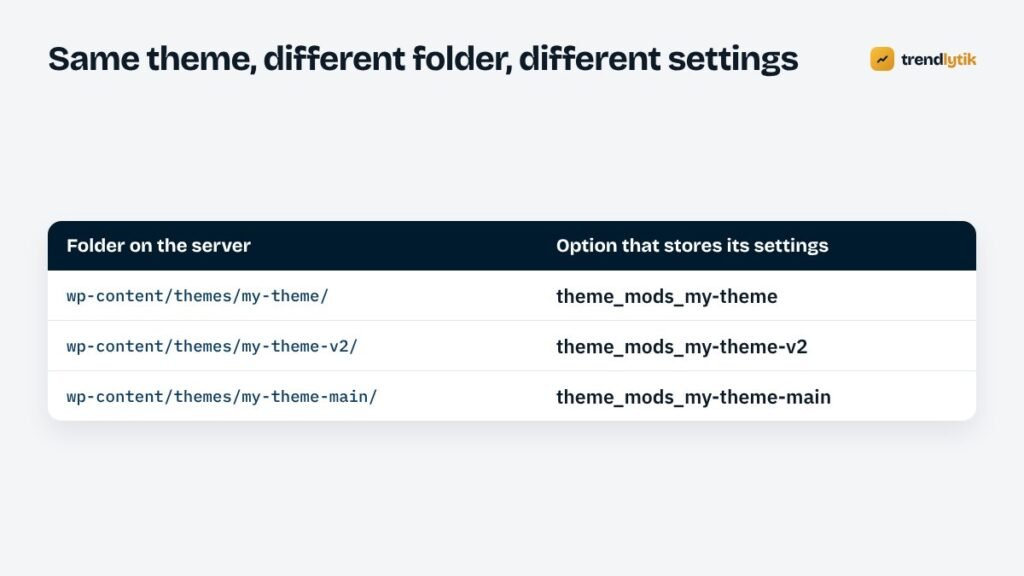
So a theme in wp-content/themes/my-theme/ stores its settings in theme_mods_my-theme. If the same theme is installed into wp-content/themes/my-theme-v2/, WordPress treats it as a completely different theme with its own, empty option. The old settings are still in the database; the new folder simply does not look at them.
Menu locations, the custom logo, header images and background settings are stored the same way, which is why so much changes at once.
How the folder name changes by accident
When you upload a theme zip in Appearance → Themes → Add New, WordPress extracts it and uses the top-level folder inside the zip as the theme’s folder name. Problems start when that folder is not what you expect:
- Zipping the contents instead of the folder. If
style.csssits at the root of the zip, WordPress invents a folder name from the zip’s file name. - Version numbers in the name. A zip called
my-theme-v2.1.zipcontaining loose files becomesmy-theme-v2.1/. The next release becomesmy-theme-v2.2/— a different theme every time. - Git downloads. Downloading a repository as a zip from GitHub or GitLab produces folders such as
my-theme-main/ormy-theme-1.4.0/. - Wrapper folders. Some compression tools add an extra folder around the theme, so WordPress finds
package/my-theme/or fails to recognise the theme at all. - Manual renames. Someone renames the folder over FTP to keep a backup of the old version, then uploads the new one.
In every case the code is fine. The folder name — and therefore the settings key — has changed.
Recovering “lost” settings
Because the old settings usually still exist, recovery is often quick:
- Find the old option. In the database, look in the options table for names beginning with
theme_mods_. You will usually see one for the old folder name and one for the new. - Decide which folder name is permanent. Ideally, go back to the original name: rename the theme folder to it and re-activate. The old settings reappear immediately.
- Or copy the settings across. If you must keep the new folder name, copy the old option’s value into the new one. With WP-CLI this is two commands:
wp option get theme_mods_my-theme-v2.1 --format=json > mods.json
wp option update theme_mods_my-theme --format=json < mods.json
Without WP-CLI, a short snippet run once by an administrator does the same job with get_option() and update_option(). Take a database backup before either approach.
Finally, delete the duplicate theme folder so nobody activates the wrong one later.
Packaging themes properly
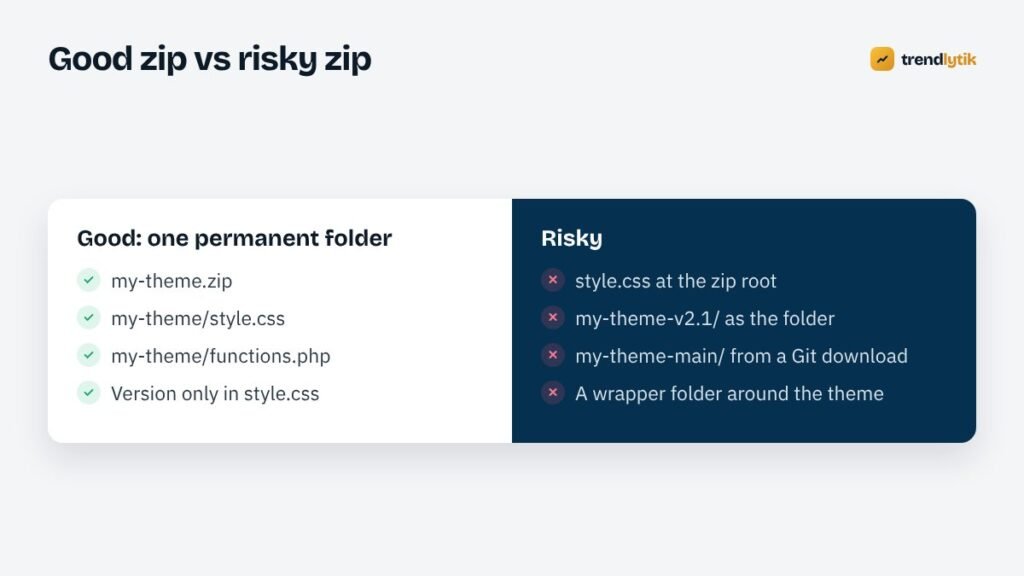
The fix is simple: always build the zip from the parent directory, so the archive contains exactly one top-level folder with the theme’s permanent name.
cd ~/themes
zip -r my-theme.zip my-theme -x "*.DS_Store" "*/.git/*" "*/node_modules/*"
unzip -l my-theme.zip | head    # first entry must be my-theme/
Rules we follow on every release:
- The folder name never changes. Choose it once — a short, lowercase slug — and keep it forever.
- The version lives in
style.css, in theVersion:header, never in the folder name. - The zip file name can include a version for your own records, because WordPress uses the folder inside, not the zip name — as long as the folder is there.
- Check the zip before sending it. List its contents and confirm the first entry is the expected folder.
- Exclude development files such as
.git, editor settings and operating system clutter.
Updating a WordPress theme safely by hand
Recent versions of WordPress make manual updates easier: when you upload a zip for a theme that is already installed, WordPress compares the two and offers to replace the current version with the uploaded one. That only works when the folder names match — another reason to keep them permanent.
A safe manual update looks like this:
- Take a full backup, including the database.
- Upload the zip and confirm WordPress recognises it as the same theme (“replace current with uploaded”).
- Check the homepage, the Customizer and menus.
- Purge page and CDN caches so visitors see the new files — see filemtime cache busting.
If WordPress does not offer to replace the existing theme, stop: the folder names do not match, and continuing would install a second copy.
Child themes and settings
A child theme has its own folder and therefore its own theme_mods_ option. If you switch from a parent theme to a child theme, Customizer settings do not carry over automatically — copy them as described above. Plan the switch before you configure the site, not after.
Settings that live elsewhere
Not everything is a theme mod. Settings saved with the options API — plugin settings, some theme panels — have their own option names and are not affected by folder changes. Widgets are stored separately too, though their placement in sidebars can shuffle when switching themes. Content itself — posts, pages, products — is never affected.
Why themes from the directory never have this problem
Themes installed from the WordPress.org directory are updated by WordPress itself, which downloads the package and replaces the files in the existing folder. The folder name is fixed by the directory, so settings always survive. Good commercial themes use update systems that behave the same way. The problem is specific to manual zip uploads and deployments — which is exactly how most custom and agency-built themes are updated.
Deploying without zips
For sites we maintain regularly, we often skip zip uploads entirely and deploy changed files directly over SFTP or from version control to the existing theme folder. The folder never moves, so the question of names never arises. Whichever method you choose, keep a backup of the previous version of the theme outside the themes directory — not as a second theme folder, where it can be activated by mistake.
A quick diagnosis checklist
If a client reports that their settings vanished after an update, check these in order:
- Appearance → Themes: are there now two copies of the theme with slightly different names?
- Which folder is active? Compare its name with the previous one in your records or backups.
- In the database, are there two
theme_mods_options for the theme? - Is the theme a child theme now, where it was a parent before (or the reverse)?
Nine times out of ten, step one or two finds the cause in under a minute.
Preventing it in teams
When several people deploy a theme, write the folder name and packaging command into the project’s README, or automate packaging with a small script. A pre-release check that unzips the archive and verifies the top-level folder name takes seconds and catches every one of the mistakes above.
Exporting settings as insurance
For important sites, keep a copy of the theme mods outside the database. The Customizer has no built-in export, but a WP-CLI command or a small plugin can save the option as JSON before every update. If anything goes wrong — a mistaken folder rename, a botched migration, an accidental reset — restoring takes seconds instead of an afternoon of re-entering text and re-uploading images.
The same goes for staging sites. When you copy a site from staging to live, make sure the theme folder name is identical on both, or the live site will start with empty settings even though the code is the same.
Summary
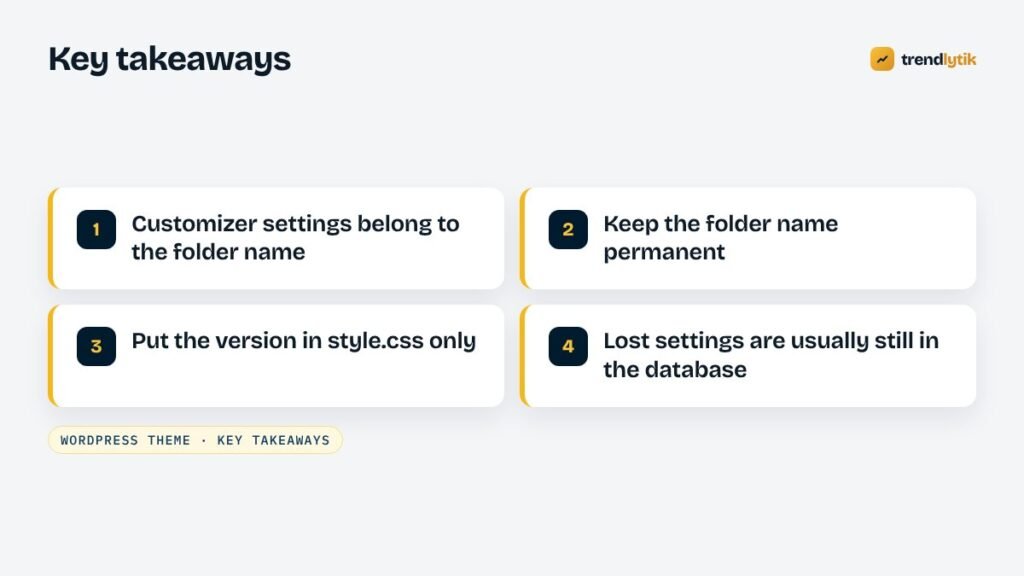
Customizer settings belong to a folder name. Keep the folder name permanent, put the version in style.css, build zips from the parent directory and check them before upload. If settings do disappear, they are almost certainly still in the database under the old name, ready to be copied back. It is a small discipline that is part of every custom theme we ship. If a client site has lost its settings, get in touch — it is usually a quick fix.
Sources and further reading
- WordPress Customize API — how theme settings and theme mods work.
- get_theme_mod() — WordPress reference for reading theme mods.
Questions about this topic.
Are my old Customizer settings deleted when this happens?
Usually not. They remain in the database under the old folder name's option. You can copy them across to the new folder name, as described in this article.
Does updating a theme through the WordPress updater cause this?
Not for themes from the WordPress.org directory or well-configured commercial updaters, which keep the folder name. It mostly happens with manual zip uploads.
Should I use a child theme?
If you modify a third-party theme, yes — a child theme protects your changes from updates. Note that a child theme has its own folder name, so its Customizer settings are stored separately from the parent's.