Website Accessibility for Small Businesses: A Practical WCAG Guide
Accessible websites reach more customers, reduce legal risk and usually perform better in search. A plain-language guide to WCAG for small businesses — what to check, what to fix first and how to keep it that way.
 pasindukw
· 7 min read

Millions of people use the web with a disability: people who are blind and use screen readers, people with low vision who zoom to 200 percent, people who cannot use a mouse, people with hearing loss, dyslexia or cognitive impairments, and older visitors whose eyesight and dexterity are changing. Add temporary situations — a broken wrist, bright sunlight on a phone screen — and accessibility affects nearly everyone at some point. Website accessibility means making sure all of them can use your site.
In this guide
An accessible website is one that all of these people can use. For a small business, that means more potential customers, lower legal risk and, often, a better experience and better search performance for everyone. Accessibility matters to us personally: we helped build CourageAll, a platform for families travelling with disabilities. This guide explains what accessibility involves in plain language and what to fix first.
What is WCAG?
The Web Content Accessibility Guidelines (WCAG), published by the W3C, are the internationally recognised standard for web accessibility. The current version, WCAG 2.2, was published in October 2023. The guidelines are organised into three levels — A, AA and AAA — and most laws and policies refer to level AA as the target. That is the sensible goal for a business website.
The four principles
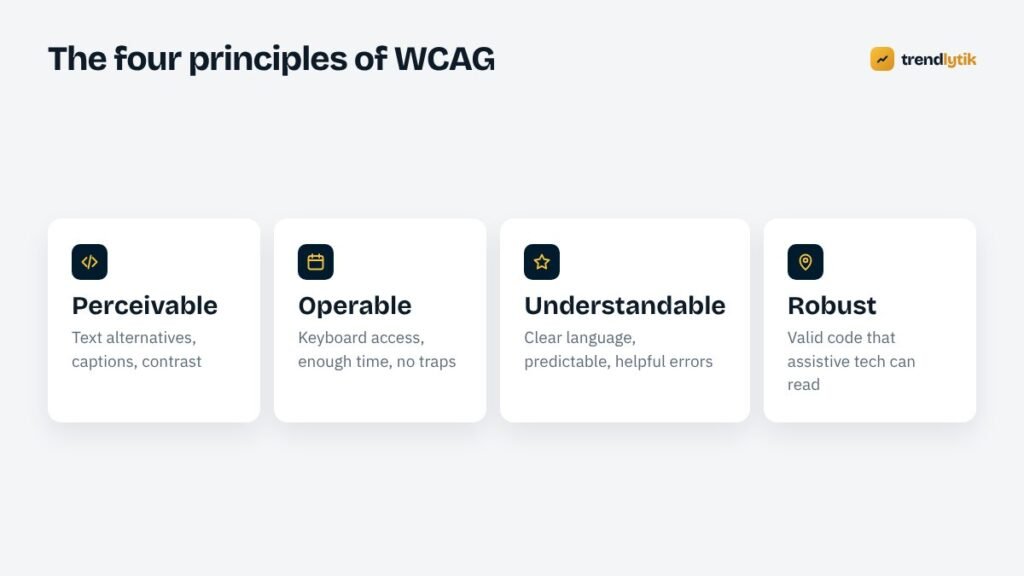
WCAG is built around four principles, often remembered as POUR:
- Perceivable — people can perceive the content, whatever their senses. Images have text alternatives, videos have captions and text has enough contrast.
- Operable — people can use the interface. Everything works with a keyboard, nothing flashes dangerously and users have enough time to complete tasks.
- Understandable — content and interactions make sense. Language is clear, navigation is predictable and form errors explain how to fix them.
- Robust — the site works with current and future technologies, including screen readers. That mostly means clean, valid code using the right HTML elements.
Why it matters for a small business
More customers
Every barrier on your site turns away someone who wanted to buy, book or enquire. Accessible checkout forms, readable text and keyboard-friendly menus remove those barriers.
Legal risk
In the United States, businesses open to the public have faced lawsuits over inaccessible websites under the Americans with Disabilities Act. In the European Union, the European Accessibility Act applies to many products and services, including ecommerce, from 28 June 2025, with exemptions for microenterprises providing services. Other countries have their own rules. Requirements depend on your location and customers, so take advice for your situation — but building accessibly from the start is far cheaper than retrofitting under pressure.
Better for everyone
Captions help people watching without sound. Clear headings help everyone scan. High contrast helps anyone using a phone outdoors. Keyboard support helps power users. Most accessibility improvements are simply good design.
Search engines benefit too
Descriptive headings, meaningful link text, alt text, good structure and fast pages all help search engines understand your content. Accessibility is not an SEO tactic, but the two point in the same direction.
Quick wins to fix first

1. Colour contrast
Text needs enough contrast against its background. WCAG AA requires a contrast ratio of at least 4.5:1 for normal text and 3:1 for large text and interface elements such as button borders and form field outlines. Light grey text on white is the most common failure. Free contrast checkers tell you the ratio instantly.
2. Alternative text for images
Every meaningful image needs alt text describing what it conveys — not “image” or the file name, but “Technician repairing a washing machine drum”. Purely decorative images should have empty alt text so screen readers skip them. Images of text, such as a poster, need the text in the alt attribute or on the page.
3. Labelled forms
Every form field needs a label that stays associated with it. Placeholder text alone disappears when people start typing and is often not read reliably by assistive technology. Error messages should say what went wrong and how to fix it, near the field in question.
4. Keyboard access and visible focus
Try using your site with only the Tab, Shift+Tab, Enter and Space keys. Can you reach every link, button, menu and form field? Can you see where you are? A clearly visible focus outline is essential; removing it for design reasons is one of the most damaging common mistakes. Drop-down menus, pop-ups and carousels need particular care.
5. Descriptive links and buttons
Screen reader users often navigate by jumping between links. A page full of “Click here” and “Read more” makes no sense out of context. Use link text that describes the destination — “Read the WooCommerce launch checklist” — or add hidden context for repeated buttons.
6. A logical heading structure
One H1 per page, then H2s for main sections and H3s within them, without skipping levels for visual effect. Screen reader users navigate by headings the way sighted users scan.
Other important checks
- Zoom and reflow: pages should remain usable at 200 percent zoom and on narrow screens without horizontal scrolling.
- Language: set the page language in the HTML so screen readers pronounce content correctly.
- Video and audio: provide captions for video and transcripts for audio.
- Motion: avoid flashing content, and respect the “reduce motion” setting for animations.
- Target size: buttons and links need to be large enough to tap reliably — WCAG 2.2 added a minimum target size criterion.
- Time limits: warn people before sessions expire and let them extend.
- Consistent navigation in the same place on every page.
Why overlays are not the answer
Accessibility overlay widgets promise compliance with one line of code. They cannot fix missing labels, broken keyboard navigation or poor structure in your site’s code, and they can interfere with the screen readers and settings disabled people already use. Many disabled users and accessibility experts actively object to them. Fixing the site itself is the reliable approach.
How to test your site
- Automated tools: browser extensions such as WAVE or axe DevTools, and the accessibility section of Lighthouse, catch many issues in seconds. They find only part of the problems, so treat them as a starting point.
- Keyboard test: navigate the whole site without a mouse.
- Zoom test: set the browser to 200 percent and use the site.
- Screen reader test: try VoiceOver on Mac or iPhone, or NVDA on Windows, on your key pages.
- Ask real users: feedback from disabled people who use your site is the most valuable test of all.
Accessibility in WordPress
WordPress itself is built with accessibility in mind, but themes and plugins vary widely. When choosing or building a theme, check for keyboard-accessible menus, visible focus styles, skip links, sufficient contrast and semantic HTML. Every custom theme we build includes these, and our article on building without page builders explains why hand-built templates make accessibility easier to maintain.
Writing accessible content
Much of accessibility is in the hands of whoever writes and publishes content, not the developer. Simple habits make a big difference:
- Write in plain language, with short sentences and paragraphs.
- Use real headings and lists from the editor, not bold text that only looks like a heading.
- Write alt text as you upload each image.
- Never rely on colour alone to convey meaning — “fields in red are required” excludes people who cannot see red.
- Explain abbreviations the first time you use them.
- Provide documents as accessible web pages where possible, rather than scanned PDFs.
Publish an accessibility statement
An accessibility statement explains the standard you aim for, known limitations and how people can contact you if they encounter a barrier. It shows good faith and gives visitors a way to tell you what needs fixing — which is often how the most important problems are found.
Where to start if your site has many issues
An accessibility audit of an older site can produce a long list. Do not let it become overwhelming. Fix the issues that block tasks first — the contact form, the checkout, the booking flow and the main navigation — then work through templates rather than individual pages, because one template fix improves every page that uses it. Content issues such as missing alt text can be fixed gradually, starting with your most visited pages.

Make website accessibility part of the routine
Accessibility is not a one-time project. New content, images and features can introduce new barriers. Add a few checks to your publishing routine — alt text, headings, link text, captions — and review the site properly once a year as part of your maintenance.
Want to know how accessible your site is today? Ask us for a review and we will send a prioritised list of fixes.
Sources and further reading
- W3C: WCAG overview — the official Web Content Accessibility Guidelines.
- WAVE — a free accessibility evaluation tool.
- ADA.gov web guidance — US guidance on web accessibility.
Questions about this topic.
Is website accessibility a legal requirement?
It depends on where you operate and who your customers are. In the United States, websites of businesses open to the public have faced lawsuits under the Americans with Disabilities Act. The European Accessibility Act applies to many products and services sold in the EU from June 2025. Check the rules for your markets; this article is not legal advice.
Can an accessibility overlay plugin make my site compliant?
Overlays and widgets do not fix underlying problems in the code and can interfere with the assistive technology people already use. Fixing the site itself is the reliable approach.
Does accessibility help SEO?
Many accessibility practices — descriptive headings, alt text, clear link text, good structure, fast pages — also help search engines understand your content. Accessibility is about people first, but it rarely hurts rankings and often helps.


1 comment